|
💻
Give it 30 minutes. If it's still not sharing, reset the app.
Most sharing problems on Windows come from sleep mode or old app data. Both are quick to fix.
|
⬢ Wait a little first
Right after you start the app, it's normal for Honeygain to share nothing for 10–30 minutes. If nothing changes after that, reset the app.
⬢ Reset the Honeygain app
This clears the app's local data. Your earnings and account aren't affected.
1 |
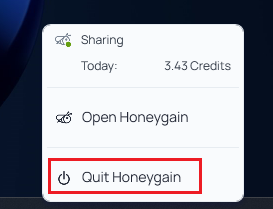
Sign out and close Honeygain
|
2 |
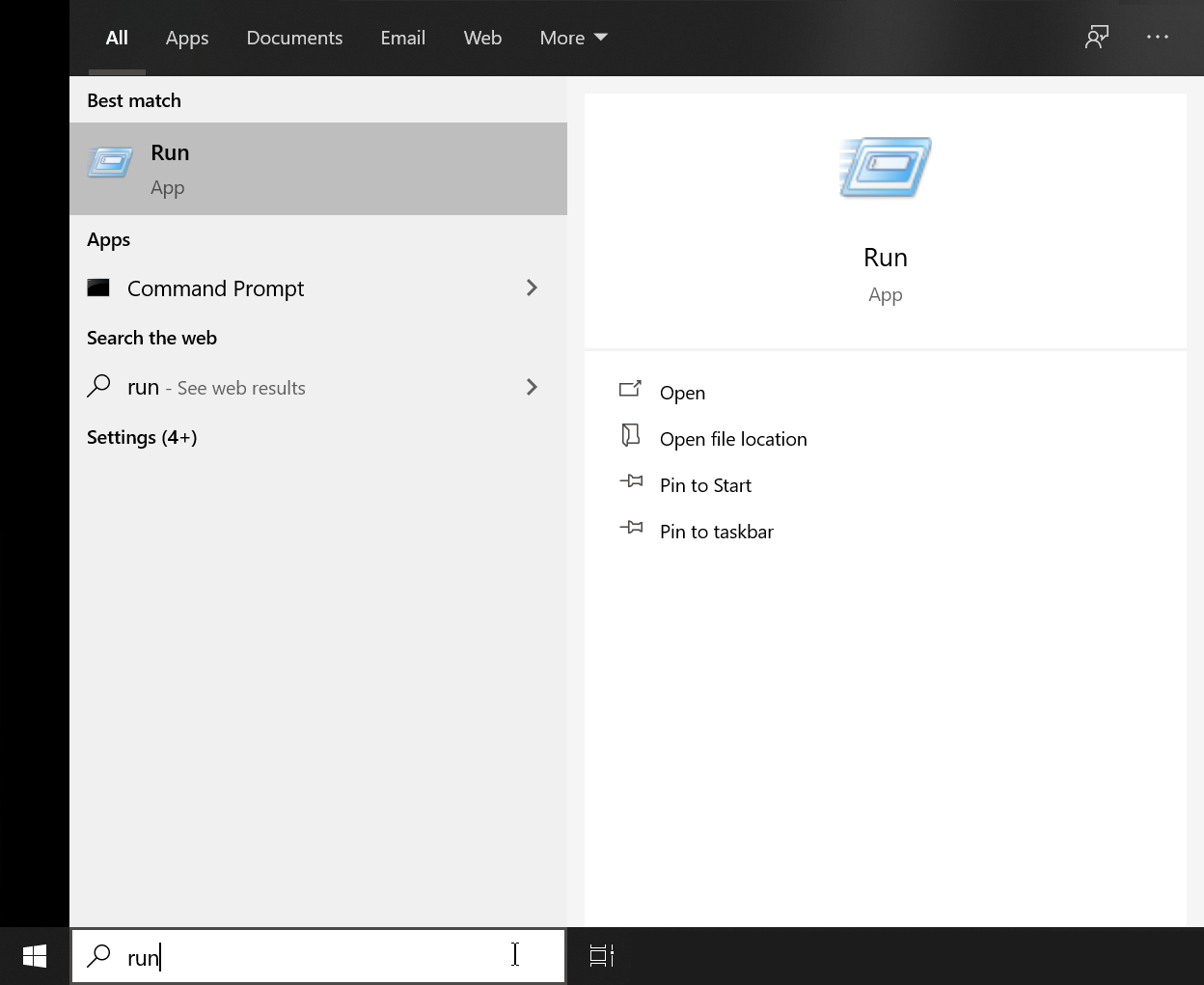
Open Run
Search for Run in the Start menu, or press Windows + R.
|
3 |
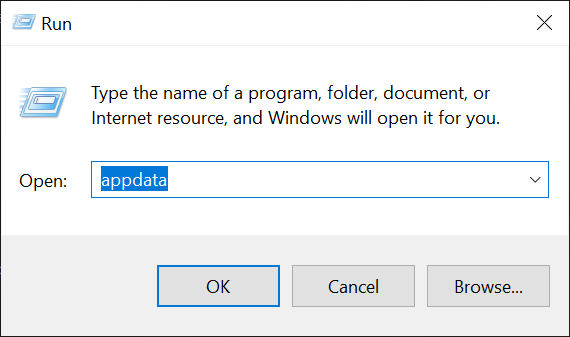
Type appdata and press Enter
|
4 |
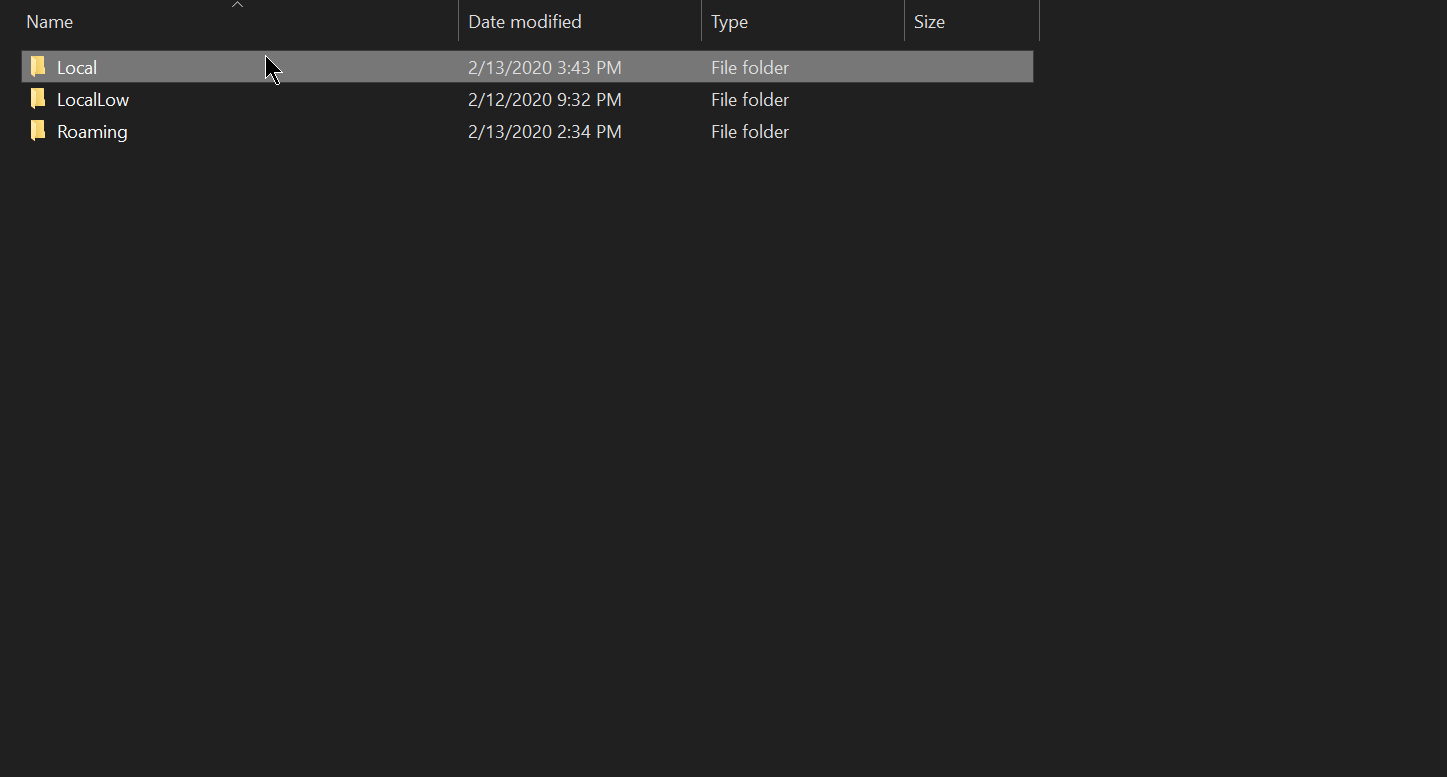
Open the Local folder
|
5 |
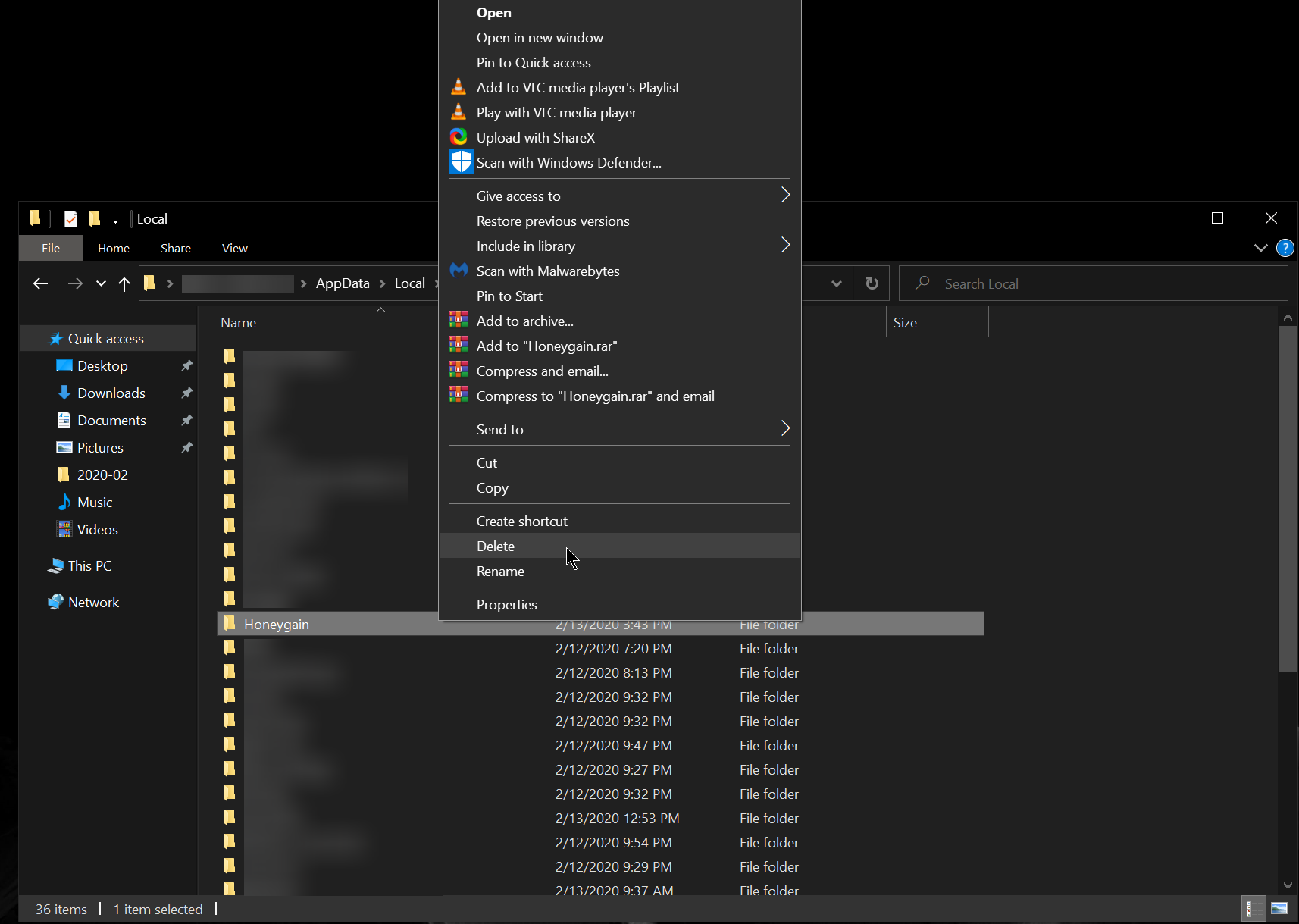
Delete the Honeygain folder
|
6 |
Open Honeygain and log in
Your device should start sharing again shortly.
|
⬢ Keep Windows from sleeping
Honeygain can't share while your computer is asleep. Change these settings so it stays awake:
| Windows version |
Where to change it |
| Windows 10 |
Start → Settings → System → Power & sleep. Under Sleep, set both options to Never. |
| Windows 11 |
Start → Settings → System → Power & battery → Screen and sleep. Set both sleep options to Never. |
⬢ Using a laptop with the lid closed?
By default, closing the lid puts your laptop to sleep. To keep Honeygain running:
1 |
Open Control Panel
Search for Control Panel in the Start menu.
|
2 |
Go to Hardware and Sound → Power Options |
3 |
Click Choose what closing the lid does
You'll find it in the left sidebar.
|
4 |
Set both options to Do nothing
Under When I close the lid, choose Do nothing for both On battery and Plugged in.
|
⬢ Related articles
Read more about sharing issues.
Why do my earnings change?Error: Network overusedCan't install on Windows
|
